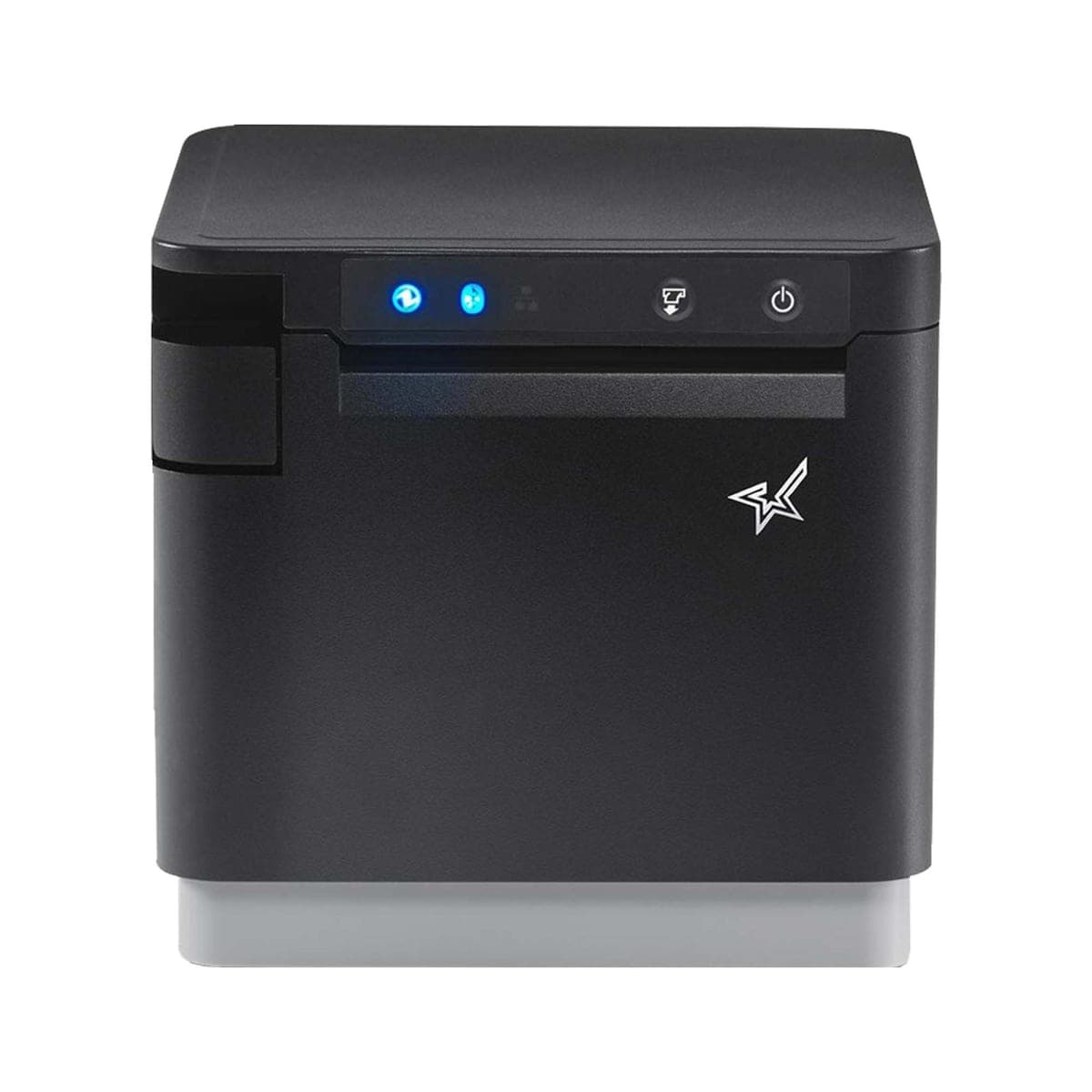
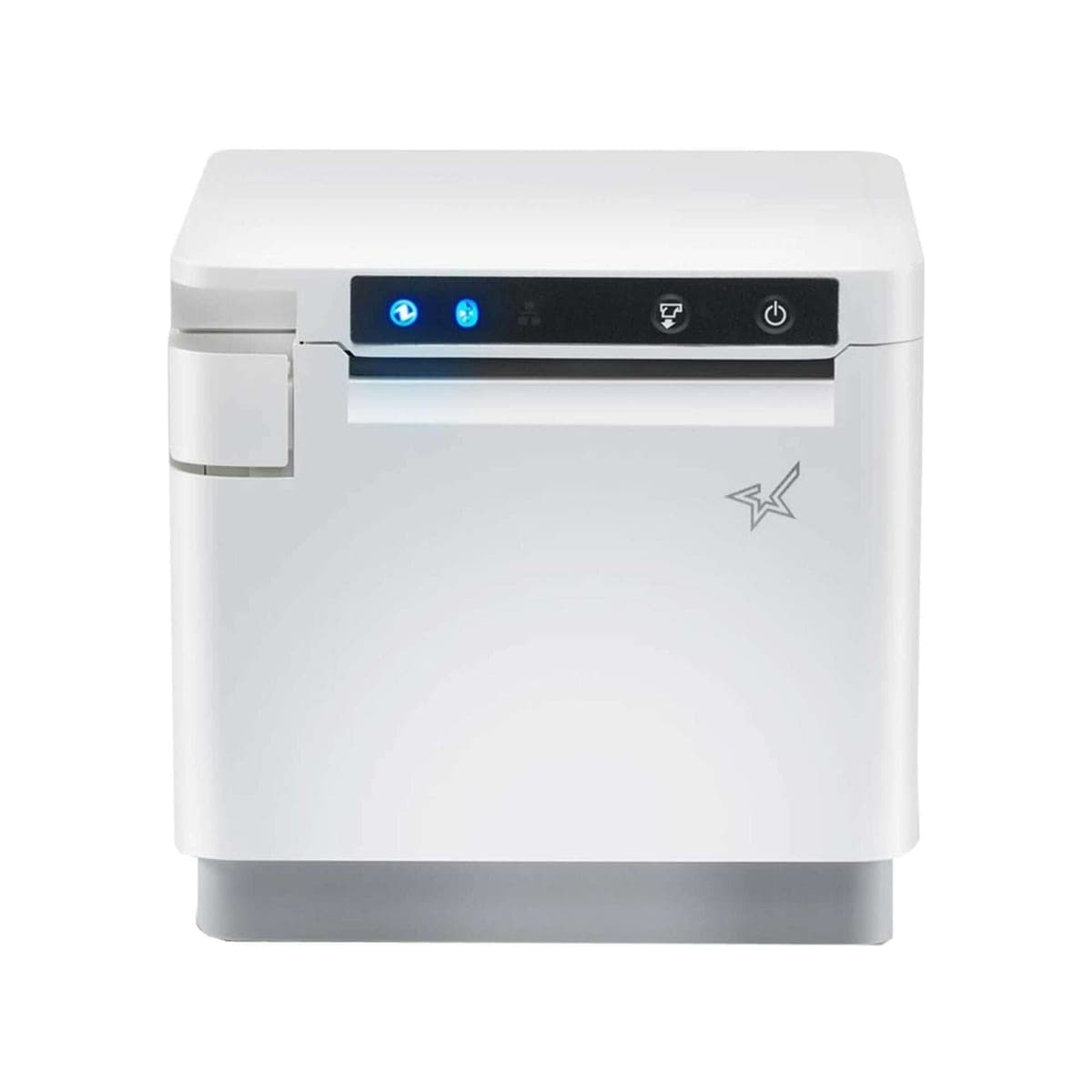
One printer for the whole restaurant. The Star mC-Print3 is the printer Opero is built around: it prints guest receipts at the counter, receipts for kiosk orders, and tickets for your kitchen stations. It is fast, it loads paper from the front, and its small footprint leaves room on a busy counter.
Why it works
- One model, every job. Counter receipts, kiosk receipts, kitchen station tickets and the order (expo) ticket all print on the same model, so staff learn one printer and you keep one kind of paper. Kiosk receipts print automatically on the printer plugged into that kiosk. A kiosk with no printer of its own sends them to your location's receipt printer.
- Prints through the Opero app. Plug it by USB into a kiosk, register tablet or kitchen screen running the Opero Android app. That device prints for it over Wi-Fi, so the printer needs no network cable.
- Opens your cash drawer. Cable a Star printer-driven cash drawer to the mC-Print3 you use for guest receipts, and Opero opens it on cash sales. The Star CD4 cash drawer is sold separately.
- Fast and easy to load. Prints up to 15.7 in per second. Paper loads easily from the front, and receipts come out the front, so it works on a counter or under one.
- Made for a busy counter. Star rates it IP22 for splashes and dust, and it takes up just 5.2 x 5.5 in.
How many do I need?
Put an mC-Print3 wherever you want paper. Each one plugs by USB into its own kiosk, register tablet or kitchen screen, and each of those devices takes one printer. A printer plugged into a kiosk prints that kiosk's receipts. One plugged into a register prints that register's receipts and opens its cash drawer. Every kitchen station's tickets print on one kitchen printer per location, and the order (expo) ticket, if you turn it on, prints there too unless you choose an order printer. One mC-Print3 can do every job, so a small restaurant can run on one.
In the kitchen
The mC-Print3 prints on thermal paper, and heat darkens thermal paper. Mount kitchen printers away from grills, fryers and other heat sources.
Setting it up with Opero
- Plug the printer into power, load the paper and turn it on. Plug a USB-A to USB-C data cable into the printer's USB-C port and into the kiosk, register tablet or kitchen screen running the Opero app. When Android asks which app should use the printer, tap Opero, then Always.
- On that device, open the printer setup. On a kiosk, tap 5 times quickly in the middle of the top edge. On a register or kitchen screen, tap the orange Printer plugged in button. Enter a manager PIN, then tap Set up this printer. There is nothing to type into the printer.
- In Opero's Setup, print a test page. For a kitchen printer, press Send kitchen tickets here. Kiosk receipts, and a register's receipts and cash drawer, go to the printer plugged into that device. To change the rest, go to Devices, then Printers, and use Where each document goes.
- Our mC-Print3 setup guide has every step in detail. If you get stuck, email support@operoos.com. For a printer bought on its own, Opero helps with setup by email only. Bought a kiosk kit? We help you set up the kit by phone or video, or on a setup visit, as the kit page and our Terms of Sale say.
What you need
- For each printer, a kiosk, register tablet or kitchen screen running the Opero Android app (Android 12 or newer), kept on and connected to your Wi-Fi. Opero's Setup installs the Opero app on the device and walks you through it.
- For each printer, a USB-A to USB-C data cable (not included), from a USB-A port on the kiosk, tablet or screen to the printer's USB-C port. A tablet or screen with only a USB-C port needs a USB-C OTG adapter with a charging port. A USB-C to USB-C cable will not work.
- 3 1/8 in thermal paper rolls, 230 ft, up to 3 1/4 in across (not included)
- An Opero account
What's in the box
- Star mC-Print3 printer
- AC adapter and power cable
- Safety instructions and easy setup guide
Paper and a USB cable are not included.
Specifications (Star)
| Model | Star mC-Print3 MCP31Ci (2nd generation) |
|---|---|
| Part number | 39659110 (black), 39659010 (white) |
| Print method | Direct thermal |
| Print speed | Up to 15.7 in/s |
| Resolution | 203 dpi |
| Paper | 3 1/8 in thermal, roll up to 3 1/4 in diameter |
| Print width | 2.8 in |
| Cutter | Auto-cutter, partial cut |
| Ports | Ethernet (LAN), USB-C, USB-A, cash drawer port, 24 V power in. Opero prints over USB, through the Opero app on the device the printer plugs into. |
| Sensors | Paper end, paper near-end, cover open |
| Power | External AC adapter (included) |
| Size | 5.2 x 5.5 x 4.9 in (W x D x H) |
| Operating temperature | 41 to 113 °F |
| Colors | Black, white |
Setup guide: Star mC-Print3 with Opero
Warranty
Warranted by Star on Star's terms; Opero adds no warranty of its own.